A photo that becomespart of the design
Upload a photo, and Dimaker AI will seamlessly blend it into the diploma or certificate design.
- Upload a photo
- Ready in minutes
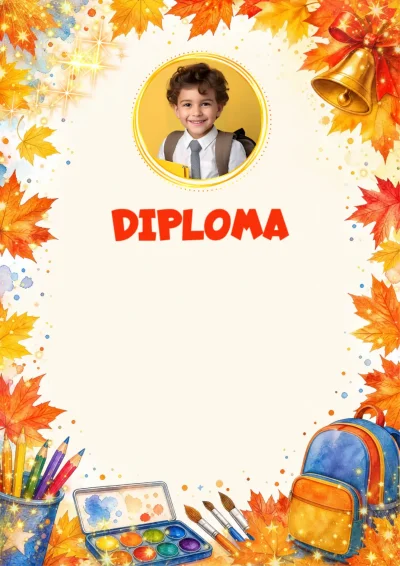

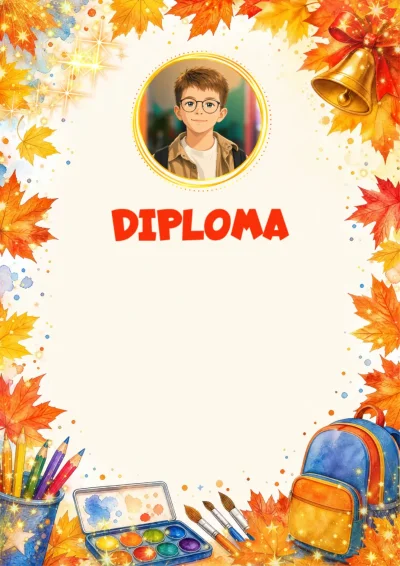
Part of the design
AI doesn't just put a picture in a frame; it seamlessly blends the photo so the diploma looks complete.
Template-style photo
The palette, lighting, and drawing style are taken from the design. The photo looks like part of the design, not a cutout.
Recognizable face
Facial features, posture, and clothes are preserved as in the picture, making the recipient easily recognizable at a glance.
A regular photo works
A photo from a phone, an event, or an archive is suitable for the design. No studio shoot is needed.
No designer or photo editor needed
Upload a photo, click 'Process', and in a couple of minutes, the result is in the document. No complex software.
Exactly to the frame shape
Circle, oval, arch, or a custom window — the processed photo neatly follows the frame shape designed in the template.
A diploma they will keep
A personalized diploma or certificate with a photo is valued more than a standard form. It is kept, shown to others, and shared on social media.
Template + photo = AI magic
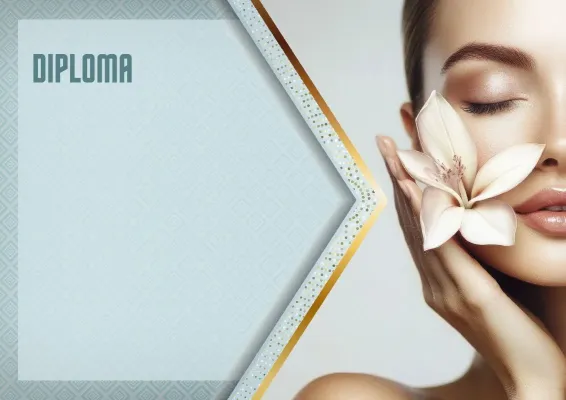
See how Dimaker AI stylizes photos in different templates

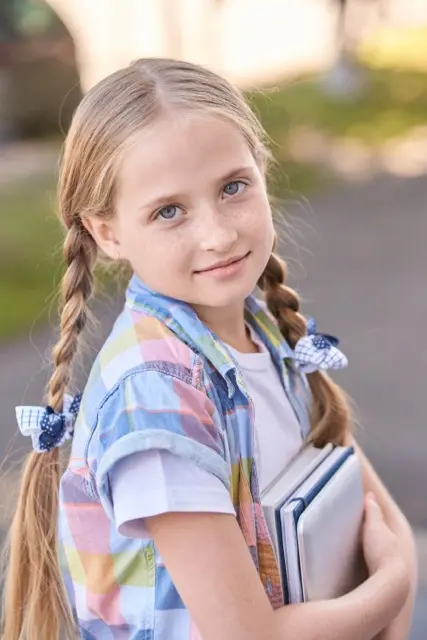


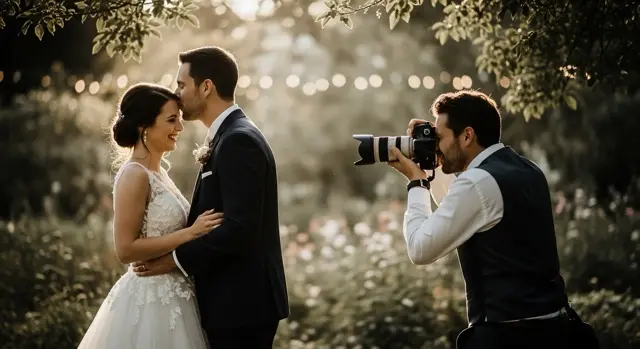
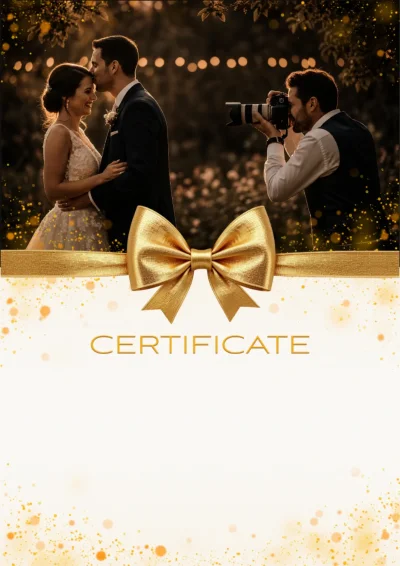
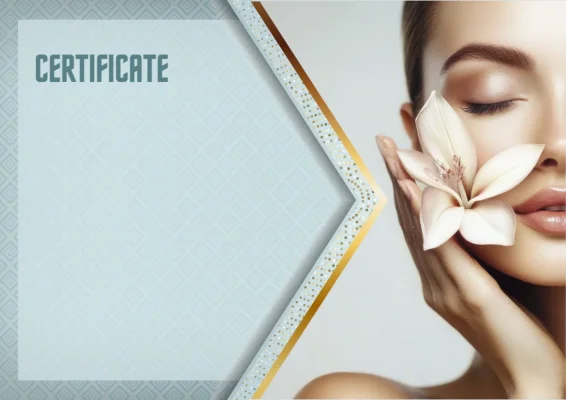
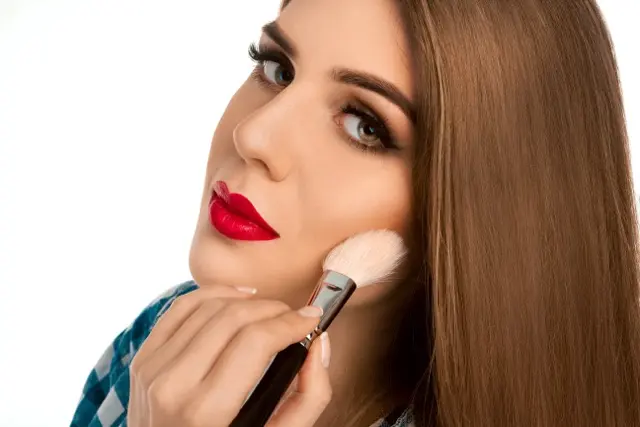
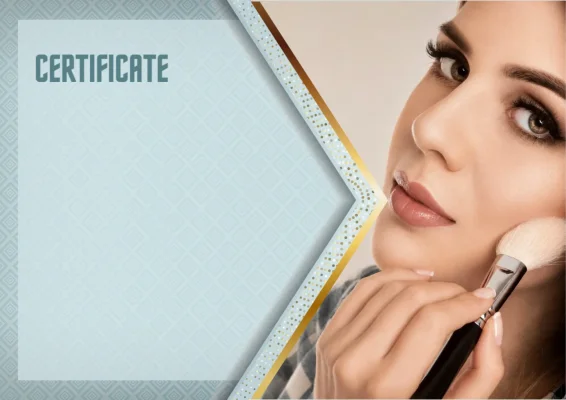
Three steps to a certificate with a photo
Everything happens right in the editor — no need to download or install anything
Select a template with a photo
The catalog has a 'With photo' section — these templates already have a frame for a picture.
Upload a picture
Click on the photo in the template, select your own, and crop it to fit the frame.
Click 'Process'
AI will process the photo in the style of the template and put it in place. Just enter the name and download.
Class, group, or team — everyone gets a diploma with their photo
Fill in the table with names, put the photos in a folder, and Dimaker will automatically insert the right photo into each recipient's document
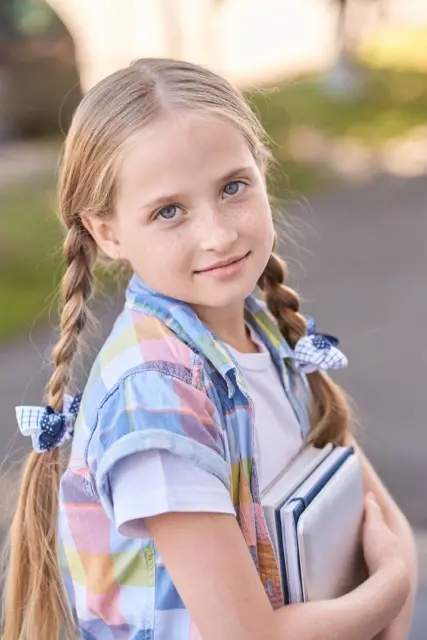

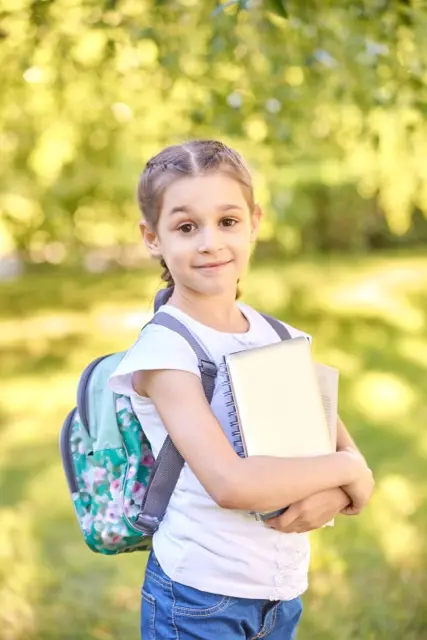
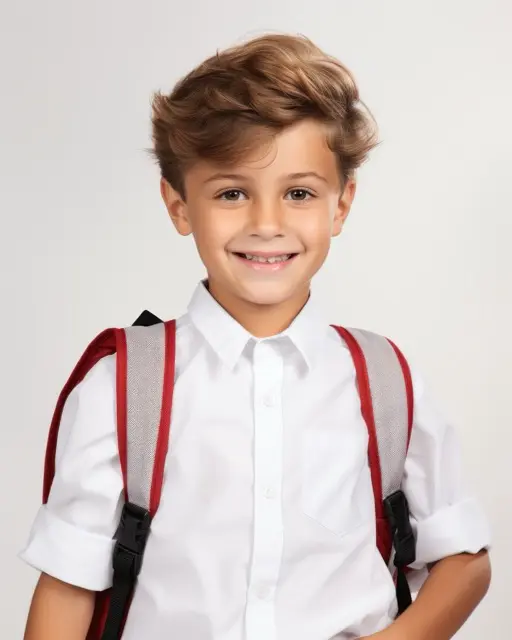
- Put photos in a Media Library folder Name the files exactly as in the table: «Emma Wilson.jpg» or simply by row numbers.
- Open 'Replace images' In the batch creation table, select the folder and the column to search for photos.
- Create files Each photo will fit into its document's frame. Just check and download.
Case, spaces, symbols, and extensions don't matter — «emma_wilson.JPG» will also be found
Name photos 1.jpg, 2.jpg, 3.jpg, and they will be placed according to the table rows
Download all documents as a ZIP archive or a single PDF file
If you process the photos in the Media Library in advance, all documents will have a unified style.
Everything to make the photo look perfect
Cropping to fit the frame
The photo immediately opens in the frame's proportions: move and zoom it — and the face will be exactly where it needs to be.
Configured by designers
For each template, we pre-configured AI instructions, so the style perfectly matches the design.
Use 'as is'
No processing needed? Place the photo unchanged with one click.
Everything is stored in the Media Library
Uploaded and processed photos are always at hand — easy to reuse.
Ready for print
High quality 300 DPI, JPG, and PDF are suitable for printing, email, and messengers.
Templates you can add a photo to
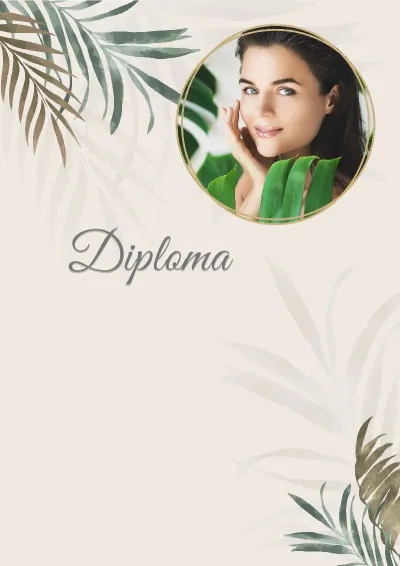
We have prepared templates for you to add photos to



FAQ
Which photo works best?
A clear shot with a well-visible face: in daylight and without heavy blur. Crop the photo to fit the frame before processing — AI will preserve the selected composition.
How long does processing take?
Usually a couple of minutes, sometimes up to three. When the AI finishes, the photo will automatically fit into the template frame.
How much does it cost?
Uploading your own photos is included in PRO tools, and each AI processing uses one generation from the monthly limit. If you run out of generations, you can buy an extra package.
What if I don't like the result?
Upload the photo again and reprocess it, or use the picture 'as is'.
Can I create documents with photos for all participants at once?
Yes. Put photos in a Media Library folder and name the files by names from the table or by row numbers — during batch creation, each photo will be placed in its respective document.
Where are the photos stored?
In your Media Library — in a personal folder or a team folder. After creating documents, you can delete them.
Create a certificate with a photo
Select a template, upload a picture, and in a couple of minutes, AI will seamlessly blend it into the design.
Select template with photo