Fonts
The editor features a large font catalog: formal, handwritten, and decorative. You can add the ones you use most to "My fonts" so they are always at hand in the toolbar list.
How to choose a font
- Select the text.
- Click the font name on the toolbar.
- Choose a font from the list — the text will change immediately.
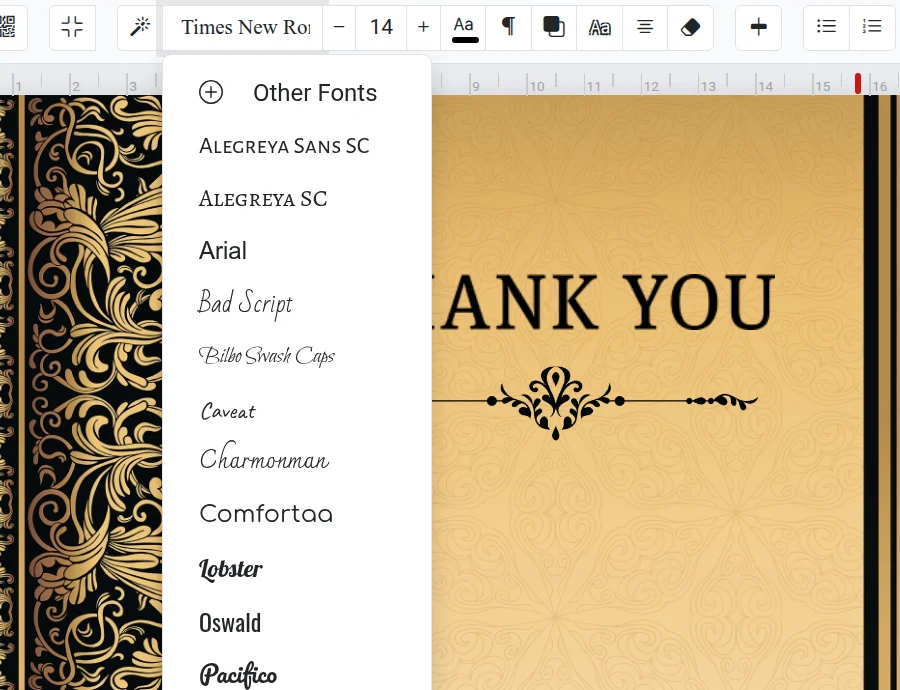
How to find and add a new font
- Open the font list and click "More fonts" at the bottom.
- In the "Fonts" window, all catalog fonts are shown on the left. Find a suitable one by name using the search bar, or narrow down the list using filters: alphabet (for example, Latin) and category.
- Check the box next to the font you like — it will appear on the right in "My fonts" and in the toolbar list.
To remove a font from your list, uncheck the box in the same window. On mobile, "All fonts" and "My fonts" are two separate tabs.
Can I upload my own font?
No, you cannot upload a font from your computer — only fonts from the catalog are available. However, all of them are guaranteed to display identically on any device and in the final file.
Troubleshooting
- Letters turned into squares or a different font — the selected font does not support your language. Choose a different one: you can filter fonts by alphabet in the catalog.
- The font was not applied — check that the text is selected.