Text formatting
First, select the text you want to change, and then choose the formatting on the toolbar or in the Format menu. If nothing is selected, the changes will apply to the paragraph where the cursor is placed.
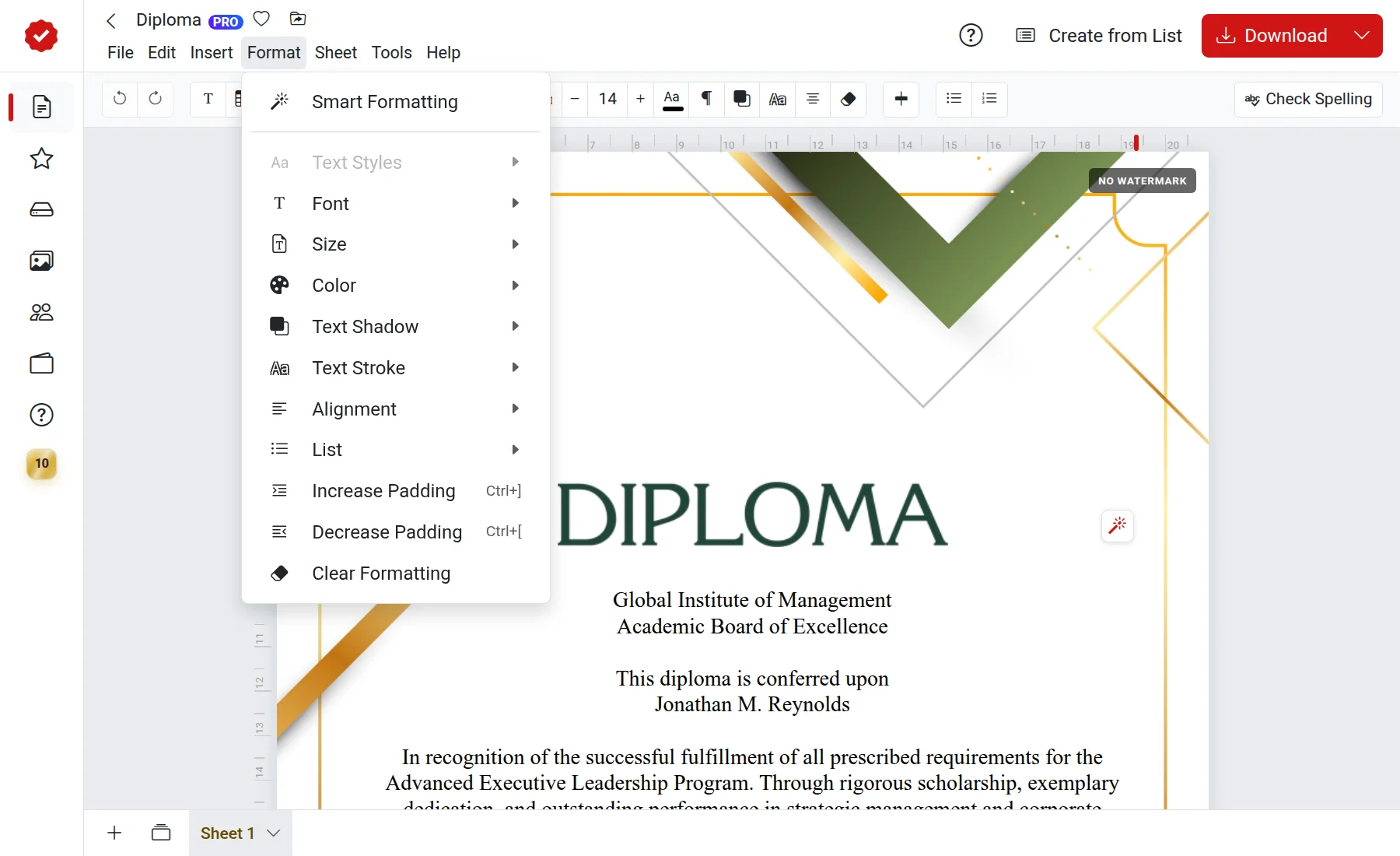
Style, font, size, and color
- Bold, italic, underline, strikethrough — buttons on the toolbar or
Ctrl+B,Ctrl+I,Ctrl+U. When you select text, a small toolbar with these same buttons appears next to it. - Subscript and superscript — for formulas and units like m²:
Ctrl+,andCtrl+.. - Font — a list of fonts on the toolbar. To learn how to add new ones, see the Fonts article.
- Size — the "−" and "+" buttons next to the number, or select from the list.
- Color — a palette or your own color via Choose custom color.
On Mac, press ⌘ instead of Ctrl.
Alignment
- Align left, center, align right, justify — just like in any text editor.
- Align to edges — a special option: the line is divided into two parts, one aligned to the left, the other to the right. This is convenient for signatures: "Director" on the left and "John Smith" on the right. Place the cursor where the line should split and select Align to edges. The
Tabkey moves the cursor between the parts.
Keyboard shortcuts: Ctrl+Alt+L, Ctrl+Alt+E, Ctrl+Alt+R, Ctrl+Alt+J, and Ctrl+Alt+B for Align to edges.
Paragraphs and lists
The Paragraph properties button on the toolbar opens the settings:
- Line spacing — the distance between lines;
- Indent — the first-line indent at the beginning of a paragraph, also
Ctrl+]andCtrl+[; - Space before paragraph and Space after paragraph — the white space between paragraphs.
Lists — Format → List: numbered or bulleted, with a choice of bullet style.
Shadow and stroke
To make text easier to read on a bright background, add a shadow or an outline:
- Text shadow — horizontal and vertical offset, blur, and shadow color;
- Text stroke — the thickness and color of the outline around the letters.
Both settings are available in the Format menu and on the toolbar.
How to clear formatting
Select the text and choose Format → Clear formatting. The text will return to its default appearance.
Troubleshooting
- Formatting buttons are inactive — select a text block or place the cursor in the text.
- The whole paragraph changed, not just one word — first, highlight the specific word with your mouse.
- Text copied from Word looks strange — select it and click Clear formatting.