Page properties
Page properties allow you to set the page size, orientation, margins, and how your custom background is positioned. The settings apply only to the current page.
Open the Page → Page properties menu.
Size and orientation
- In the Page size list, select a format: A4, Letter, A5, or B5.
- Use the Portrait and Landscape buttons to rotate the page.
- Need a custom size? Select Custom size... and enter the width and height in centimeters — from 5 to 29.7 cm.
- Click Apply.
No size options?
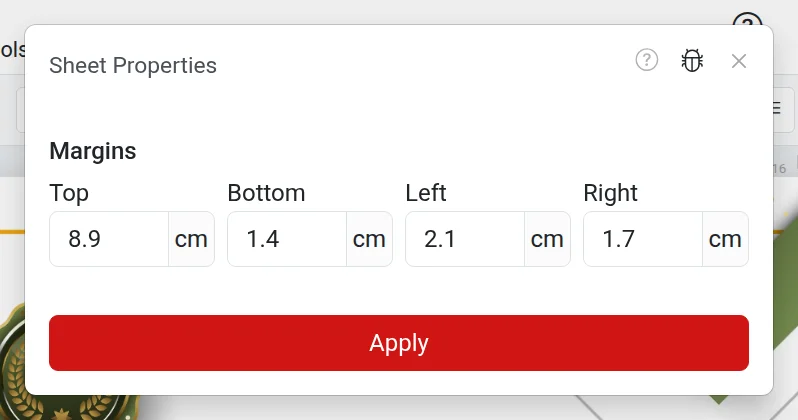
If the window only shows margins, it means the page uses a template from the catalog. It is designed for a specific size, so it cannot be changed.
Margins
Margins are the spaces from the edges of the page to the text area. Set them in centimeters: top, bottom, left, and right.
There is a restriction: the text area must take up at least one-third of the page. If the margins are too large, the editor will highlight them in red and will not apply the changes.
It is also convenient to change margins directly on the page: when you type in a built-in text block, rulers appear at the edges. Drag the marker on the ruler to change the margin.
Background position
This section only appears if you have a custom background on the page.
- Fill — the background covers the entire page; the edges of the image may be cropped.
- Fit — the entire image is visible; there may be blank bands along the edges.
- Position — which edge or corner to align the background to.
Troubleshooting
- Margins are highlighted in red — decrease them: there is not enough space for the text area.
- Cannot enter a size larger than 29.7 cm — this is the maximum page size.
- Changes are not visible — make sure you opened the properties for the correct page: the settings only apply to the current one.