Page template and background
The background is the base of the page: a frame, an ornament, or a company letterhead. You can select one from the catalog of ready-made templates, upload your own, or create one in the Studio. Each page of the document can have its own background.
Template from the catalog
- Open the Page → Choose template from catalog menu. On an empty page, the Choose template button in the tooltip above the page does the same.
- Choose the document type and a template you like.
- The template will be applied to the current page: the background, page size, and margins (the area where it is convenient to write text so it doesn't overlap the frame) will change.
What happens to the text on the page
Usually, your blocks stay in place, and only the background and elements of the previous template change. However, some templates come with ready-made text — in this case, the entire page content is replaced. Therefore, it's better to choose a template before you start writing, or copy your text beforehand. Another option is to add a new page and apply the template to it.
Why you can't change the page size
A template from the catalog is designed for a specific size, so you can only change the margins for such a page. To choose a different size, upload your own background or start with an empty page.
Custom background
A company letterhead, a scanned frame, or any image will work.
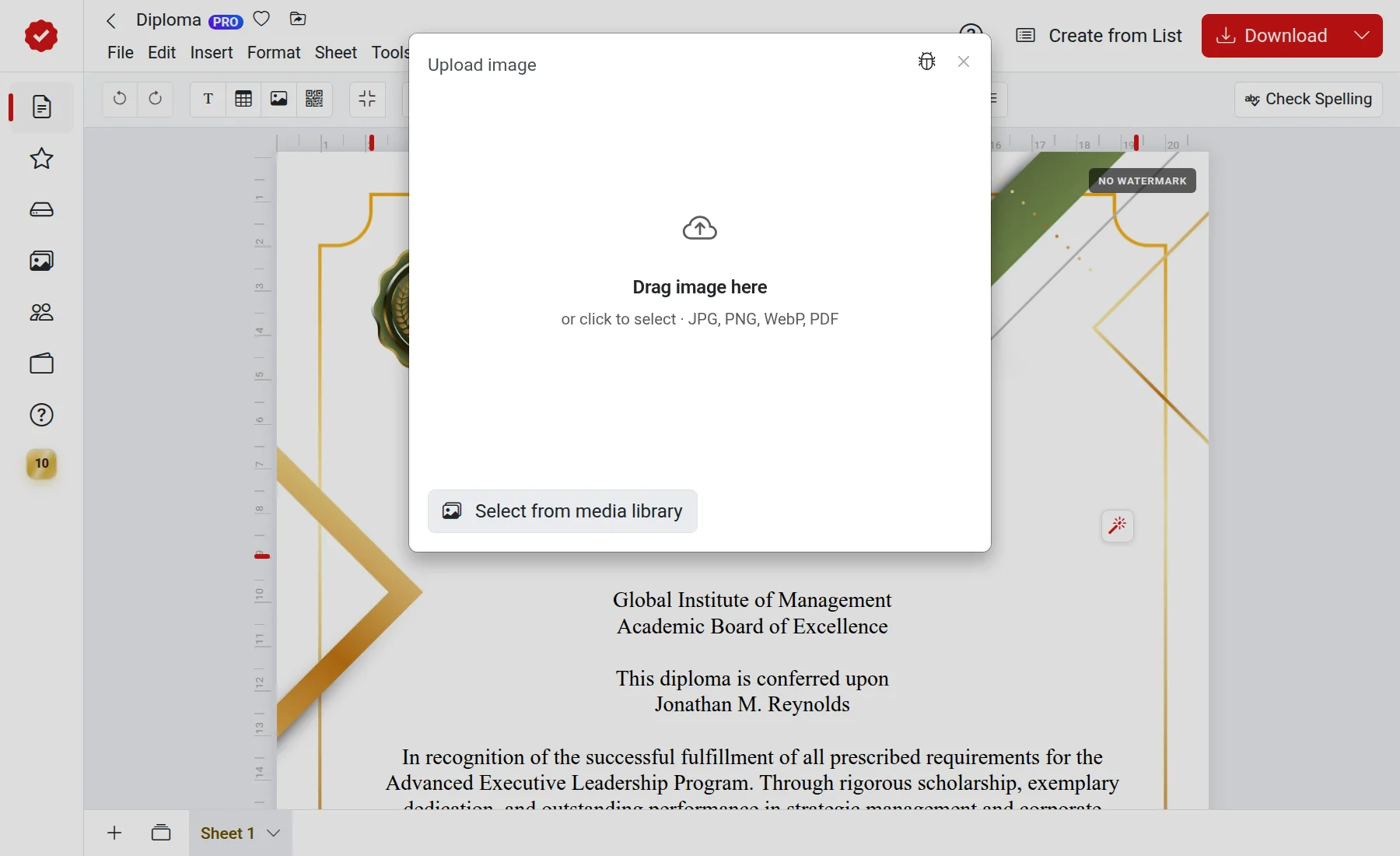
- Open the Page → Upload page background menu (or Insert → Upload page background).
- Select a file from your computer or from your media files. JPG, PNG, WebP, and PDF are supported.
- The background will stretch across the page. How it fits — filling the entire page or fitting completely within it — can be adjusted in the page properties.
Custom background and PRO
You can work with your own background for free. When generating a file without the PRO option, you will have to wait a little. With PRO, the file is generated instantly, and multiple pages can be downloaded as a single file.
Template from the Studio
In the Studio, you can generate your own template using AI. To apply it to a page, select Page → Choose template from Studio.
How to remove or replace the background
Upload a new background — it will replace the previous one. Your text, images, and other objects will stay in place, while the heading and decorative elements of the previous template will be removed along with it. When choosing a different template from the catalog, keep in mind the warning above.