QR Codes
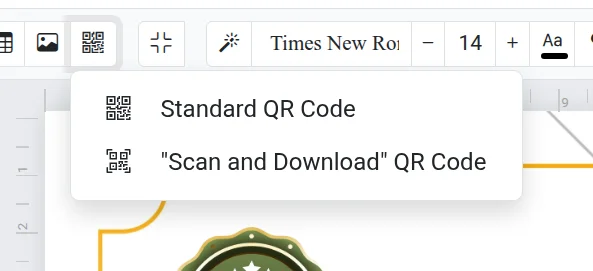
There are two types of QR codes in the editor: a standard one — with any link or text, and "Scan and Download" — allowing the recipient to download a digital copy of the document.
Standard QR Code
- Click the QR code button on the toolbar and select "Standard QR Code".
- Enter a link or any text.
- Click "Insert".
You cannot change the content of an existing QR code — delete it and create a new one. Alternatively, replace the text using "Find and Replace": the search tool also looks inside QR codes.
“Scan and Download” QR Code
This code leads to the generated document file. How it works:
- Insert the "Scan and Download" QR Code onto the page.
- Download the document and save it to the Storage. The link in the code will be generated automatically.
- Print and present the document. The recipient will point their camera at the code and download the file.
Do not delete the file
The code works as long as the file remains in the Storage. If you delete the file, the link will no longer open.
This type of code requires the PRO or Combo option. Learn more in the Export and Free and Paid articles.
Troubleshooting
- QR code is not scanning — enlarge it and make sure there is a light margin around it. Too much text makes the code small and dense.
- Cannot download a document with the "Scan and Download" code — enable saving to the Storage in the download window.