Download, print, send
The document is ready — it's time to get the file. Everything is done in a single window: select the pages, format, and what to do with the file.
How to get the file
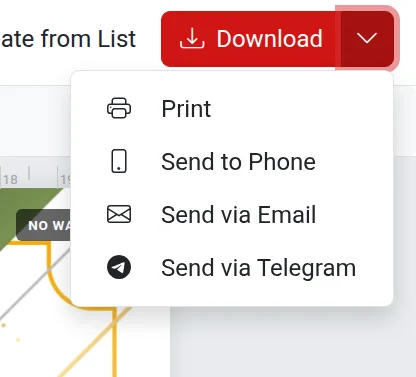
- Click the blue "Download" button in the top right corner. The arrow next to it opens other options: print and send. The same options are available in the "File" menu, and printing can be opened with
Ctrl+P. - In the "Preview" window, select the pages: current, all, or specific numbers, for example,
1, 3, 5-7. - Choose the format: Image (JPG) or Document (PDF). Multiple images will be packed into a ZIP archive, while a PDF will combine all pages into a single file.
- Click "Create".
For more details on each field in the window, see the article "Preview" window.
Where you can send it
- Download — the file will be saved to your computer or phone.
- Print — the file will immediately open for printing.
- Send via Email — requires a confirmed email address in your profile.
- Send to phone and Send to Telegram — convenient for forwarding the document in a messenger.
- Send to Yandex.Disk — in the English version.
You need to log in to your account to send files.
Where the ready file is stored
Usually, the file is stored for 24 hours and then deleted. To keep it forever, enable "Save to Storage" and select a folder. This requires the PRO option. If there is a "Scan and download" QR code on the page, the file is automatically saved to the Storage.
If something goes wrong
- You had to wait or there is a logo on the file — this is how free creation works. For more details, see the article Free and paid.
- "Add more text" — there is too little text on the page with a template from the catalog. See Why you are asked to add text.
- "Please select at least one page" — check the page numbers in the selection field.
- The email doesn't arrive — check your "Spam" folder and ensure the email address in your profile is confirmed.
- Printing comes out with margins or in the wrong size — in the browser's print window, select the correct paper size and set the scale to 100%.