Find and replace
Need to change a year, last name, or school name throughout the document? Don't search manually — use the find and replace feature.
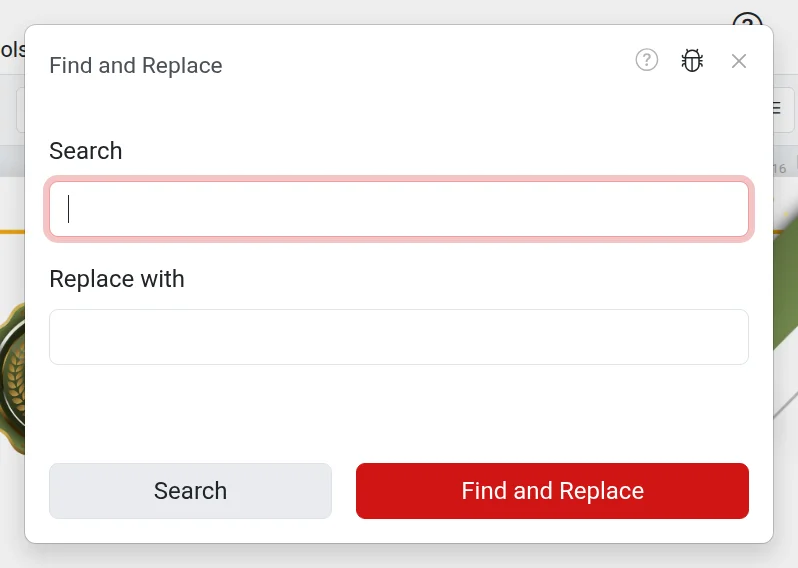
How to find and replace text
- Go to Edit → Find and Replace or press
Ctrl+F(on Mac —⌘+F). - In the first field, enter what you are looking for.
- Enable All sheets if you need to search throughout the entire document, not just the current sheet. This checkbox appears when the document has more than one sheet.
- Click Find — the editor will highlight the match and show the total number of matches. Click Find again to go to the next one.
- To replace, enter the new text in the Replace with field and click Replace. After confirmation, all matches on the sheet or in the entire document will be replaced.
If you select a word on the sheet before opening the window, it will automatically be inserted into the search field. Accidental replacements can be undone using Ctrl+Z.
Where the editor searches
The search covers text blocks, tables, and QR code text. Text drawn directly on the template background cannot be found, as it is part of the image.
Troubleshooting
- "Nothing found" — check the spelling and enable "All sheets".
- "Replacement text matches the search text" — the fields contain the same text, so there is nothing to replace.
- The "Replace" button is inactive — the document is open in view-only mode.
See also
- Create from list — if you need many identical documents with different names