Editor overview
The editor opens when you create a document or open it from the list. The screen is divided into four parts: the header with the menu, the toolbar, the page itself, and the pages panel at the bottom. Let's take a look at where everything is located.
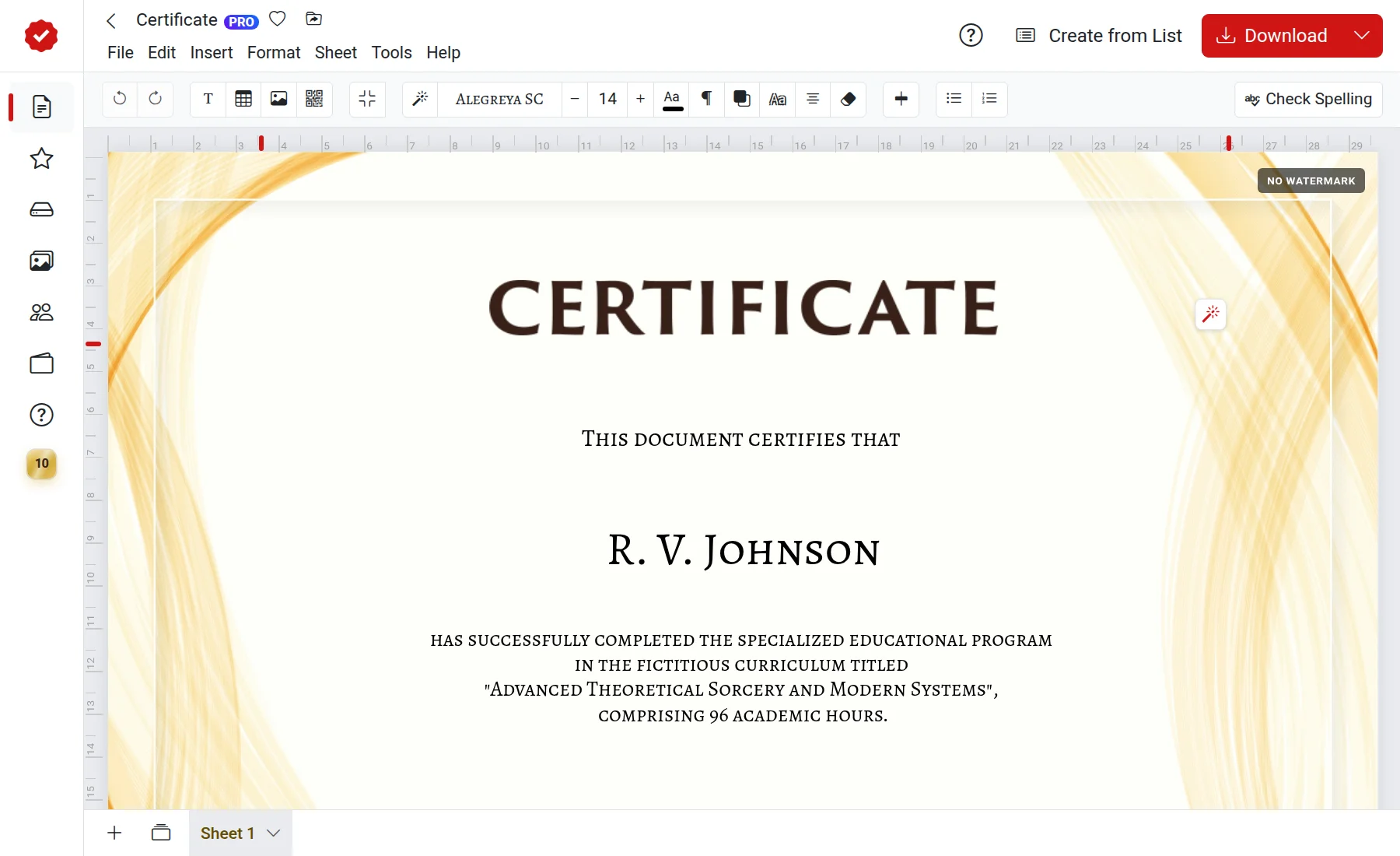
Header
The top bar contains:
- "Back" arrow — returns you to the document list;
- document name — click it to rename;
- star — adds the document to "Favorites";
- "Organize" — moves the document to another folder;
- cloud icon — shows whether changes are saved.
On the right are the "Create from list" and "Download" buttons. The arrow next to "Download" opens other actions: print, send to phone, via email, or to Telegram.

Menu
Below the document name is the menu bar. Each menu groups commands by topic:
- File — create, open, copy, share, download, create from list;
- Edit — undo and redo, find and replace, pin, align, layer order;
- Insert — text, image, logo, coat of arms, stamp, shapes, table, QR code, variable, page background;
- Format — style, font, size, color, shadow, stroke, alignment, lists;
- Table and Shape — settings for the selected table or shape;
- Page — add a page, go to another, select a template, page properties;
- Tools — AI assistant, preset texts, spell check, create from list.
Items that cannot be applied currently are grayed out. For example, table commands are only active when a table is selected.
Toolbar
Below the menu are buttons for quick access. The set of buttons changes depending on what is selected: for text, font, size, and alignment appear; for a shape, fill and border; for a table, rows and columns. If nothing is selected, the buttons for adding objects remain on the panel.
Page and pages panel
In the center is the document page. It automatically adjusts to the window size, so there are no separate zoom buttons. When you type in a built-in text block, rulers with margins appear at the edges of the page.
At the bottom is the pages panel: the "+" button adds a page, the "All pages" list helps you quickly jump to the one you need, and the tabs show the pages in order. For more details, see the article Document pages.
View only
If a document has been shared with you for viewing only, the editing buttons will be inactive. Ask the document owner to grant you editing permissions.