Your First Document in 5 Minutes
This guide will walk you through from a blank page to a ready-made file. Let's take an award as an example, but a diploma, letter of appreciation, or certificate is created the same way.
Step 1. Choose a template
If you created a document from the template catalog, the background is already in place — proceed to the second step.
If the page is blank, a hint "Choose a template or upload a background for this page" will appear above it:
- Click "Choose a template".
- Find a suitable template in the catalog and click on it.
- The background and placeholder text will appear on the page.
Want your own background? Click "Upload background" and select an image or PDF. Learn more in the article "Template and page background".
Step 2. Write the text
- Click on the text on the page — a blinking cursor will appear.
- Delete the example and write your own text: who the award is presented to and what for.
- Select a word or line to change the font, size, or color on the toolbar.
Don't know what to write? Go to "Tools" → "Select text" or ask the AI Assistant to draft the text for you.
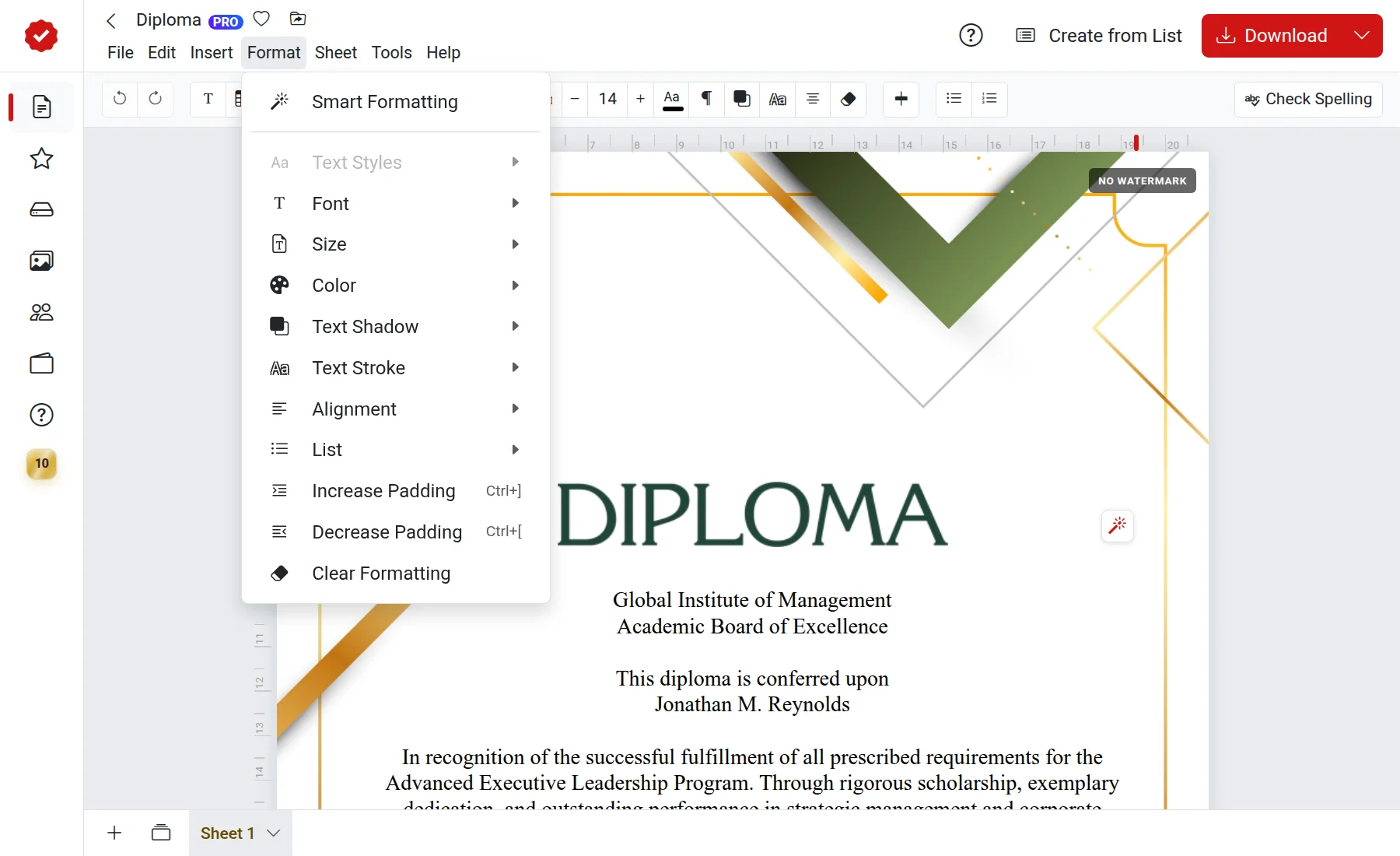
Step 3. Add a signature, stamp, or emblem
In the "Insert" menu, you can add another text block (for example, for the director's signature and date), an image, logo, emblem, or stamp. The new object will appear in the center of the page — drag it with your mouse to the desired location.
Step 4. Download the file
- Click the blue "Download" button in the top right corner.
- In the "Preview" window, select the format: PDF for printing and sending, or JPG for an image.
- Click "Create" — the file will be downloaded to your computer.
To print immediately, select the "Print" action or press Ctrl+P (on Mac — ⌘+P).
No need to save
The editor saves all changes automatically. You can close the tab and return to the document later — it will be in the "Documents" section.
If there is a waiting time or a logo
For templates from the catalog, free creation comes with a short waiting time and the service logo. To download instantly and without a logo, subscribe to "No Logo" or "Combo". Learn more in the article "Free and paid".
What's Next
- Editor interface overview
- Text formatting
- Creating documents from a list — if you need many awards