Create from a list
Need 30 certificates of merit for the whole class? Create one, insert variables into the text — for example, {ФИО} — and upload your list. The editor will automatically create one file per row.
How to create documents from a list
- Prepare your page and add variables to the text. To learn how to do this, see the Variables article.
- Go to Tools → Create files from a list or File → Create from a list. A table will appear where each column represents one variable.
- Fill in the table: enter the data manually, paste it from the clipboard, or import it from Excel or Google Sheets.
- Check the boxes next to the rows for which you need documents.
- Click Create files and select a format: a ZIP archive with images or a multi-page PDF.
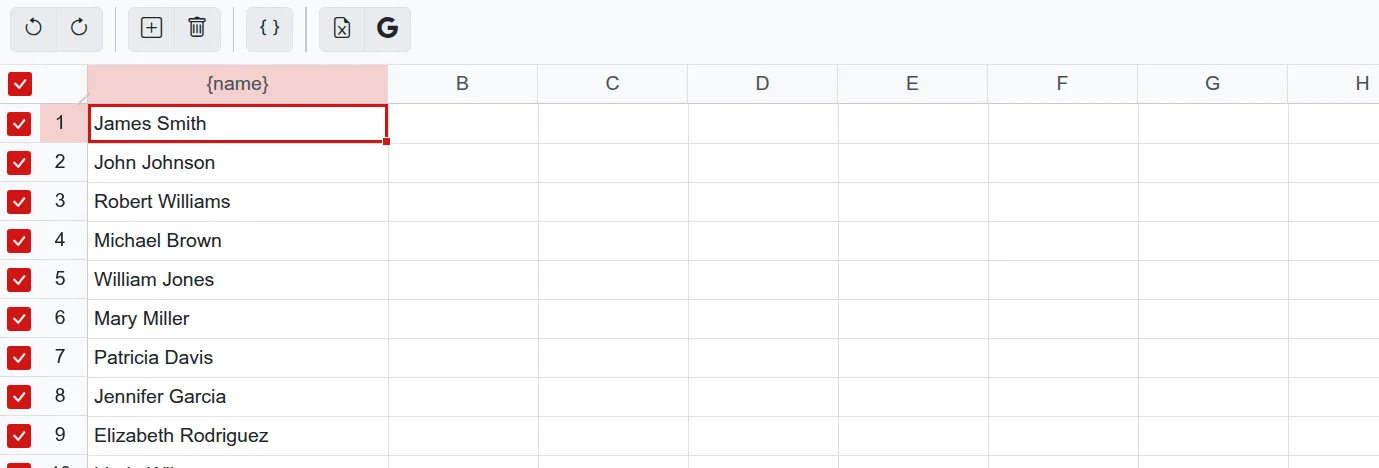
Importing from Excel and Google Sheets
- Excel — an XLSX file up to 10 MB. Only the first sheet of the workbook is loaded.
- Google Sheets — set the access to "Anyone with the link" as a "Viewer" and copy the link from the address bar. The link must contain the
edit?gid=…part — this tells the editor which sheet to use.
After importing, check the column headers. To link a column to a variable, click on its header and select the variable from the menu.
Different photos for each document
If there is an image or a photo placeholder on the page, the Replace images button will appear in the table. Specify a folder in the media library and a rule for matching the file: by variable value (for example, the file "Ivanov.jpg" for the row with the last name Ivanov) or by row number.
Requirements for creating from a list
You can create up to 50 files at a time. This requires the PRO option, and for catalog templates, the No Logo option is also required. The easiest way is to subscribe to Combo. For more details, see the Free and paid article.
Troubleshooting
- "Variables not found" — there are no variables in curly braces in the text. Add them, for example,
{ФИО}. - "No data to export" — check the boxes next to the rows and ensure that the cells in the variable columns are filled.
- "Too many files" — more than 50 rows are selected. Split the list into smaller parts.
- "Invalid link" for Google Sheets — copy the address directly from the browser's address bar when the spreadsheet is open.
- Menu item is missing — you are editing a template, not a document. Create a document from the template.