Certificates and diplomasfrom a list in a couple of minutes
Design one document, add a participant list from Excel or Google Sheets, and Dimaker will prepare a personalized certificate or diploma for everyone.
- Excel and Google Sheets
- Up to 50 documents at a time
- Single PDF for printing
One document instead of thirty
Design the certificate once, and the editor will insert the names, classes, and categories automatically
As usual
- Type the first participant's name into the template
- Save the file and repeat for everyone
- Double-check all names for typos
- Collect dozens of files for printing
From a list in Dimaker
- Design the document once
- Paste the participant list
- Click "Create Files"
- Get all documents in a single PDF
Neat documents for all participants
Everything a teacher and organizer needs to quickly prepare awards for an event
Consistent design
Fonts, spacing, and text alignment are identical across all documents. Not a single certificate will look out of place.
No mistakes in names
Data is taken directly from the list, so there is no need to retype names manually and check each one individually.
Excel and Google Sheets
Copy the list from an existing spreadsheet, upload an XLSX file, or provide a link to a Google Sheet.
Custom fields
Full name, class, school, subject, place, category, or supervisor. Each field becomes a separate column in the list.
Easy to print
All documents can be downloaded as a single PDF file and sent to the printer at once, without opening dozens of files.
List is saved
The spreadsheet is saved with the document. If a new participant appears, just add a row and create a file only for them.
Familiar spreadsheet right in the editor
The list is filled out just like in Excel: copy, paste, and edit cells without extra software
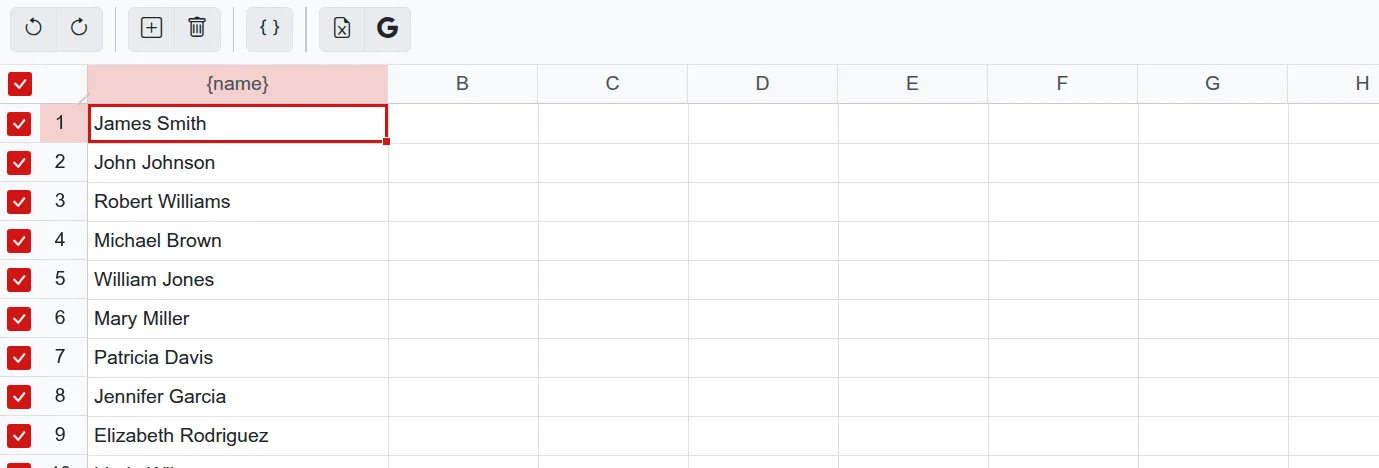
Upload an XLSX file, and the data from the first sheet will immediately appear in the table
Enable link sharing and paste the spreadsheet URL into the editor
Fill out a shared list simultaneously; changes are visible to all participants
Individual photo in each document
Put the participants' photos in a Media Library folder, and when creating from a list, each will be placed in its recipient's document.
More about photos in documents


Ready files in a convenient format
Print the entire stack at once, send to colleagues, or save to the cloud
Summary sheet included
Along with the documents, you can get a summary sheet: a list of all participants with numbers and data from the table. It is convenient to print for tracking issued awards.
Single PDF
All documents in one file: open it and print the awards for the whole class at once.
ZIP archive
A separate JPG image for each participant. Convenient if you need to send documents via email or messenger.
Storage
Save ready files to cloud Storage and access them anytime from any device.
Print and send
Send documents to a printer, email, or Telegram right from the editor.
Three steps to ready documents
Everything happens in the editor, no need to download or install anything
Prepare the document
Select a template and type variables in curly braces where the data should change, for example {ФИО} or {Класс}.
Fill out the list
Open "Create from List". Each variable will become a column: paste data from a spreadsheet or type it manually.
Create files
Check the boxes for the required rows and click "Create Files". Then just choose a format and download.
How creating from a list works
Answers to questions that arise when working with a list for the first time
Variables in text
A variable marks the place where the editor will insert data from the list. Type it in curly braces in any text block or table cell on the sheet.
Where to find
In the editor, open the "File" menu and select "Create from List". This option is available in the document. If you are editing a template, create a document from it first.
Import from Excel
XLSX files up to 10 MB are supported. Data is loaded from the first sheet of the workbook.
Import from Google Sheets
Set access to "Anyone with the link" as a "Viewer" and copy the URL from your browser. The link must contain the edit?gid= part, which the editor uses to identify the correct sheet.
Columns and variables
After importing, check the headers. To link a column to a variable, click its header and select the variable from the menu. Columns without a variable are not included in the documents, making them useful for notes.
Which rows will be included in the files
Only checked rows with at least one filled variable. You can create up to 50 documents at a time; a large list is best processed in several batches.
Different images
If there is a photo or image on the sheet, an "Image Replacement" button will appear in the table. Specify a Media Library folder and a matching rule: by variable value or by row number.
Creating from a list is included in the PRO option. If the document is based on a template from the catalog, you will also need the No Logo option, so it is most convenient to get a Combo. For schools, there is a special offer with a single price for all teachers.
FAQ
How to make certificates from an Excel list?
Open the certificate template and type variables in the text, for example {ФИО} and {Класс}. Then select "Create from List", click the import from Excel button, and upload the file. Link columns to variables, check the rows, and click "Create Files".
How many documents can be created at once?
Up to 50 documents. If there are more participants, check the first 50 rows and create the files, then uncheck them and select the next ones.
Can I add a participant's photo to each document?
Yes. Put the photos in a Media Library folder and name the files exactly as in the list, or by row numbers. In the "Image Replacement" window, select the folder, and each photo will be placed in its participant's document.
In what format are the ready documents downloaded?
As a single multi-page PDF file, which is easy to print, or as a ZIP archive with a separate JPG image for each participant. Files can also be saved to Storage or sent via email.
Will the list be saved after creating the files?
Yes, the spreadsheet is saved with the document. If you later need to correct a name or add a participant, open the document, make the changes, and create files only for the required rows.
How much does creating from a list cost?
Creating from a list is included in the PRO option. For templates from the catalog, you also need the No Logo option; both are combined in the Combo. If you use your own background, PRO is enough.
Prepare awards for all participants
Design one document, add a list, and get ready-to-print files in a couple of minutes.
Select Template