Images, logos, stamps, and signatures
You can add any picture to the page: a photo, an organization logo, a stamp, or a signature. Files are stored in the media library, so a logo uploaded once is easy to insert into new documents.
How to add an image
- Open the Insert menu or click the picture button on the toolbar.
- Choose what to add: Image, Logo, or Stamp or signature.
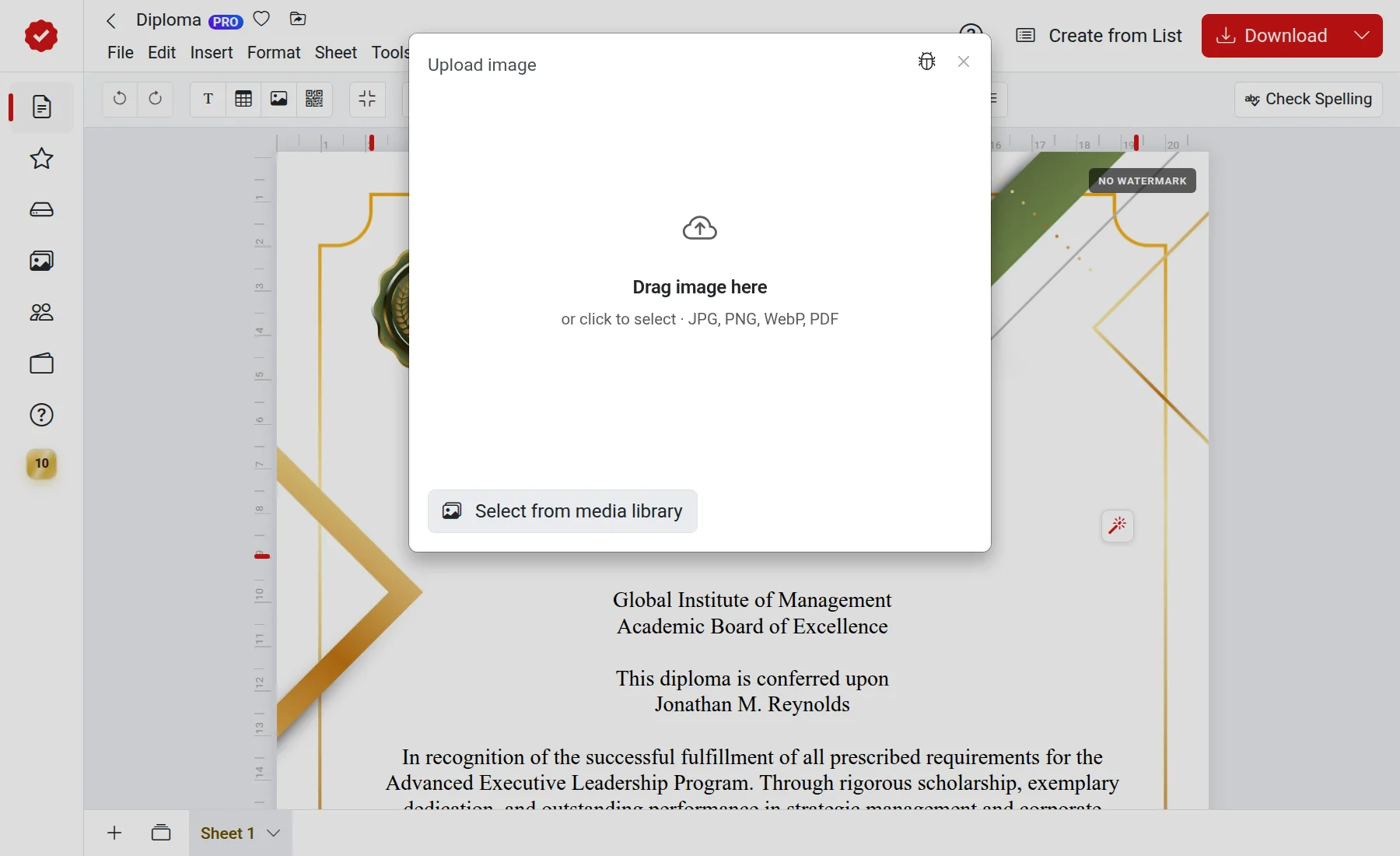
- Drag and drop a file into the window or select it on your computer. JPG, PNG, WebP, and PDF are supported. Already uploaded files can be selected from the media library.
- Edit the picture if necessary and click Add.
Editing before insertion
An editing window will open before insertion. In it, you can:
- Crop, rotate, and flip the picture;
- adjust brightness, contrast, saturation, and other parameters;
- Remove background — useful for stamps and signatures: take a photo of them on white paper, and only the impression or stroke will remain;
- apply a style — AI will redraw the picture based on a description. You need to log in to your account to do this.
Background removal takes up to a minute, styling takes up to three minutes. If the file already has a transparent background, simply upload it.
Replacing a photo in a template
Some templates have a placeholder for a photo. Click on it to upload your photo. The editor will prompt you to choose an option: As is or Edit — then your photo will be stylized to match the original picture in the template.
Stamps and signatures are strictly your responsibility
Add stamps and signatures only if you have the right to use them.
Troubleshooting
- "You can only upload JPG, PNG, WebP, and PDF images" — save the file in one of these formats.
- "Failed to remove background" — try again or use a photo where the stamp is more visible against a flat, light background.
- A payment window appeared — on a page with a paid template, images can only be added with a suitable option. Learn more in the Free and paid article.